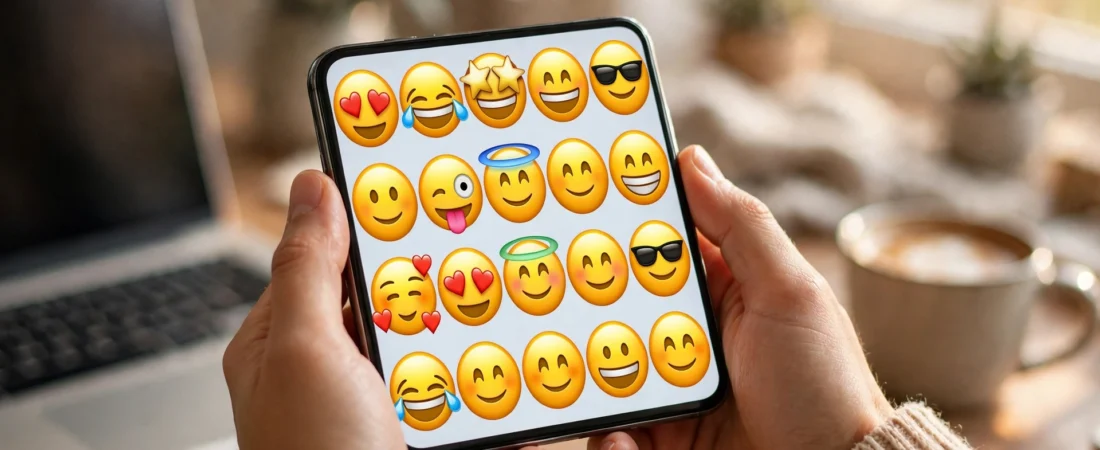
You know the feeling. You’re halfway through a message, you want exactly the right emoji — the eye-roll, the melting face, the tiny party popper — and your keyboard decides to play hide and seek. You scroll through category after category, and by the time you’ve found it, the moment’s gone.
There’s a faster way, and it works on every device you own: emoji copy paste. An emoji is just text — a Unicode character like any letter — so you can copy one from anywhere and paste it into almost anything. No app to install, no account, no fuss. This guide shows you the quickest method on each device, plus the small traps (blank boxes, wrong-looking emojis, places that won’t accept them) so you never get caught out.
The fastest way to copy any emoji
If you just want the emoji and want it now, skip your keyboard entirely. Open our free emoji copy paste tool, type a word like “laugh” or “cat” into the search box, and click the emoji you want. It lands on your clipboard straight away — you’ll see a little confirmation, and that’s it. Switch to your message, caption, or document and paste with Ctrl+V on Windows, Command+V on a Mac, or a long press and Paste on your phone.
That’s the whole trick, and it’s worth knowing why it works so well. The tool holds hundreds of emojis across ten categories — smileys, people, animals, food, activities, travel, objects, symbols, and flags — so you’re searching by name instead of swiping through a grid and hoping. Looking for the upside-down face? Type “upside” and it’s there in a second. Want five emojis in a row for a caption? Click them one after another and copy the lot at once.
There’s a second benefit that’s easy to miss. Your phone keyboard only shows the emojis your operating system knows about. A browser tool isn’t limited in the same way, so when a brand-new emoji drops — Unicode 17.0 added eight new ones in September 2025, including a distorted face, an orca, and a trombone — you can often grab it from a web tool before your phone’s keyboard update arrives.
Copy and paste emojis on Windows
Windows has had a built-in emoji panel since 2017, and most people never discover it. While you’re typing in any text field, press the Windows key and the full stop key together (Win + .). A little panel pops up. Type a word to search, or click a category along the bottom, then click the emoji to drop it straight into your text.
That covers inserting. Copying is a separate step, and it’s the one people trip over. Say you’ve spotted the perfect emoji in a document or a web page and you want it somewhere else. Click and drag across it to select it — yes, you can select an emoji exactly like a word — then press Ctrl+C. Move to the other app, click where it should go, and press Ctrl+V. Done.
If the Win + . panel feels slow, or the emoji you want isn’t in it yet, copy it from our emoji copy paste tool instead. The browser route doesn’t care which Windows version you’re on, and it works identically in Chrome, Edge, and Firefox.
Copy and paste emojis on a Mac
Macs hide their emoji picker behind a shortcut that’s easy to forget and hard to guess: Control + Command + Space. Press those three keys while you’re typing and the Character Viewer appears. Type a word in the search box — “fire”, “thumbs”, “cake” — and double-click the emoji to insert it. You can also pin the viewer open and browse by category if you’re the exploring type.
Copying an existing emoji works the way copying anything else does. Select it with your mouse or trackpad, press Command+C, click the destination, and press Command+V. If you’re copying from a web page, the click-to-copy button on an emoji site is quicker than selecting by hand, especially for a single character that your cursor keeps overshooting.
The Mac picker’s one real annoyance is that it sometimes opens as a small floating window and sometimes as a full panel, depending on the app you’re in. Don’t fight it — if it won’t behave, grab the emoji from the browser tool and paste it in.
Copy and paste emojis on iPhone and Android
On a phone, you rarely need to copy at all. Tap a text field, tap the smiley-face key (or the globe key on iPhone), and tap the emoji to insert it directly. Copying only comes into play when you want to move an emoji that’s already somewhere — a friend’s message, a caption you liked, a combination you built on a website.
On iPhone, press and hold the text until the selection handles appear, drag them around the emoji (or the whole row of emojis), and tap Copy. Switch apps, press and hold in the new text field, and tap Paste. On Android the dance is the same: long press, adjust the handles, tap Copy, then long press and Paste at the destination. Gboard and Samsung Keyboard both have their own emoji buttons, and the exact labels shift a bit between manufacturers, but the long-press-to-copy gesture is the same everywhere.
The browser method shines on phones, honestly. Phone keyboards are cramped, and swiping through nine categories on a small screen is nobody’s idea of fun. Open the emoji copy paste tool in your mobile browser, search, tap to copy, and paste — and if you’re building a caption with five or six emojis, you can assemble the whole string in one place and copy it in a single tap instead of switching keyboards back and forth.
Copying several emojis at once
Single emojis are easy. Combinations are where copy paste earns its keep. A birthday message with 🎂🎉🥳, a “good luck” run of 🍀🤞✨, or one of those elaborate emoji-art borders people put in their bios — typing those one by one on a phone keyboard is miserable. Build the sequence somewhere you can see it all at once, then copy the whole thing: type or paste the emojis into a notes app, arrange them, select the lot, and copy. On a website with a composer, click each emoji to add it to the line, then use the Copy All button. Either way, you’re copying one chunk of text, and the order survives the trip.
A word of warning about long emoji strings: some platforms cap how many characters a bio or username can hold, and each emoji can count as two characters behind the scenes. Instagram bios allow 150 characters, and a row of ten emojis can eat a surprising chunk of that. If a paste comes out cut off, that’s usually why — trim a couple and try again.
Why an emoji sometimes shows up as a box
Everyone’s seen it: you paste an emoji, and instead of a cheerful face you get an empty rectangle, a question mark, or a pair of boxes. It looks broken. It isn’t, quite — your device just doesn’t know how to draw that character yet.
The usual cause is an out-of-date operating system. New emojis arrive with OS updates, and they arrive at different times on different platforms. Apple typically ships the new batch in a spring iOS update, Google in an Android update, Microsoft in a Windows update. If your friend’s phone is on the latest iOS and yours is two versions behind, they’ll send you the new orca emoji and you’ll see a box. The fix is boring but reliable: update your phone or computer.
The second cause is subtler. An emoji is a Unicode code point — a number that every device agrees on — but the picture is drawn by each platform separately. Apple’s grinning face, Google’s, and Samsung’s are three different drawings of the same character. Most of the time the meaning survives. Occasionally it doesn’t: the pistol emoji used to be a realistic gun on most platforms and is now a water pistol everywhere, which changed how people read it entirely. And the 🙏 emoji is officially “folded hands”, but plenty of people read it as a high-five. Same code point, two meanings.
Where you can (and can’t) paste emojis
Emojis go almost anywhere text goes: messages, emails, social captions, comments, documents, bios, file names. A few places say no, and it’s worth knowing which before you waste time.
Instagram, TikTok, and X bios all accept emojis, and they’re the easiest way to make a bio scannable — a 📍 for your city, a ✉️ for contact, a flag for your language. WhatsApp and Telegram accept them everywhere, including in group names. Google Docs, Word, and Gmail handle them fine, though they can look slightly different in print.
The refusals are mostly about usernames and passwords. X, Instagram, and most sites won’t let emojis into a username, and passwords should never contain them — some systems accept them and others silently strip them, which is a recipe for locking yourself out. Email subject lines accept emojis and marketers love them for it, but use one, not six; a subject line that looks like a slot machine gets deleted unread.
One more place to be careful: professional documents. An emoji in a CV or a formal letter reads as a typo to the person on the other end, however friendly you meant it.
A few emojis people search for most
Some emojis get copied far more than the rest. The red heart ❤️ still tops most lists, followed by the face with tears of joy 😂, which has held the crown for years despite every “it’s cringe now” article. The thumbs up 👍 is the default yes, the fire 🔥 means something’s excellent, and the party popper 🎉 and folded hands 🙏 round out the usual top ten. Meanings drift, though — the skull 💀 now means “I’m dead” in the laughing sense among younger users — so if you’re ever unsure what an emoji means before you paste it into something important, a thirty-second search beats an awkward explanation later.
FAQ
How do I copy and paste an emoji on my computer?
Open an emoji site or your built-in picker (Win + . on Windows, Control + Command + Space on Mac), click the emoji to copy it, then paste with Ctrl+V or Command+V. The emoji is plain text, so it pastes into any text field.
Why does an emoji look different after I paste it?
Each platform draws its own version of every emoji. Apple, Google, Samsung, and Microsoft all use different artwork for the same Unicode character, so the same emoji can look noticeably different on an iPhone and a Windows PC.
Can I copy and paste emojis into Instagram or TikTok?
Yes. Copy the emoji from any source, then paste it into your caption, comment, or bio. Both apps accept emojis in bios and captions, though bios have a 150-character limit and each emoji can count as two characters.
Why is an emoji showing as a box or question mark?
Your device’s operating system doesn’t recognise that emoji yet, usually because it’s newer than your last update. Update your phone or computer and it should appear. If the other person’s device is older, they’ll see the box on their end instead.
How many emojis are there?
Unicode 17.0, released in September 2025, recommends 3,953 emojis — but that counts every skin tone and gender variation separately. Without the variants, there are about 1,705 distinct emojis, and the list grows by a handful each year.
Can I use emojis in a password or username?
Don’t. Most sites reject emojis in usernames, and while some password fields accept them, others strip them silently — which can lock you out of your own account. Stick to letters, numbers, and symbols for logins.
Start grabbing emojis the quick way
That’s really all there is to it. An emoji is text, copying is copying, and the only skill involved is knowing where to find the one you want without scrolling through nine categories on a tiny keyboard. Search beats swipe, every time.
Next time you need one, open our free emoji copy paste tool, type what you’re looking for, click it, and paste. Ten seconds, exact emoji, no keyboard archaeology required.